
Get the most in Civil 3D with the Bimmatch plug-in
Pull data directly into your planning model from your organization's standards, specifications, and BIM objects — all without leaving Civil 3D. It's a single, powerful step toward full project compliance: the right information, right where you need it.
Open Bimmatch launches the app as a modal window, Mark Applied Elements colorizes every element that already has Bimmatch data applied, Help Center opens this guide, and Check Add-in Update checks whether a newer version is available.

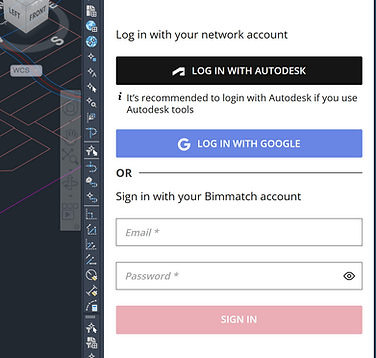
A floating panel that stays where you put it
The app opens as a floating window that can be pinned anywhere in your Civil 3D layout. Once you've arranged it the way you like, Bimmatch remembers the position for your next session.
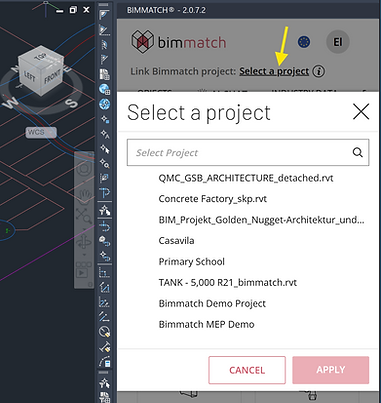
Connect your model to a live project
Click Select a project to choose from any project in your Bimmatch account. Linking gives you access to that project's documents, 3D objects, and content, plus automated compliance reports as you work.
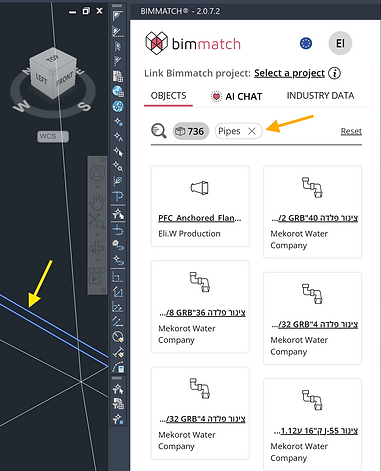
Select an element, and the panel follows
Click any element in your model and the Bimmatch panel automatically filters the products, objects, and documents shown to match that element's context — no manual searching required.
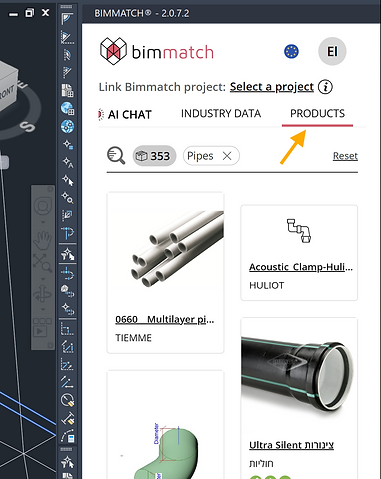
Tens of thousands of products, one click away
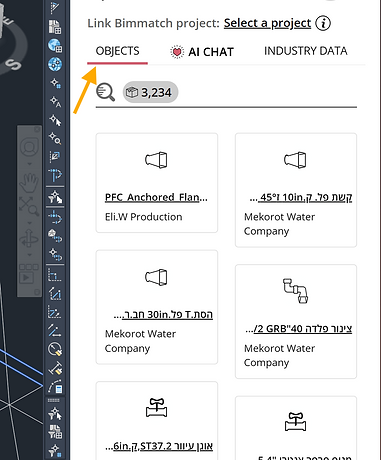
Browse a catalog of market products and apply them with Insert Data for parameters, or Insert Model to bring in the 3D geometry where it's available. Click any product title for a full detail panel, or use the search bar to filter the catalog.
Your own standard component library
The same Insert Data / Insert Model workflow applies to your organization's own object library, so your team always builds from approved, standardized components — tracked automatically in Bimmatch's compliance reports.
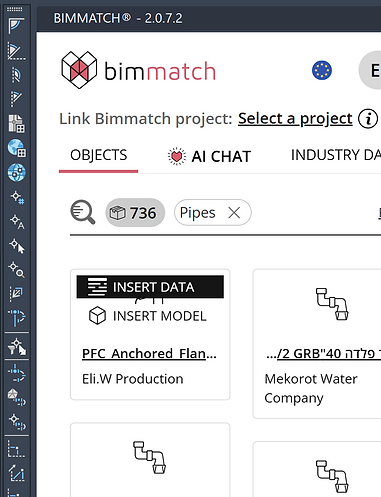
Three steps to fully-parameterized elements
Select a model item, hover its product card and click Insert Data, and the relevant parameters and values are added straight into the element's data.
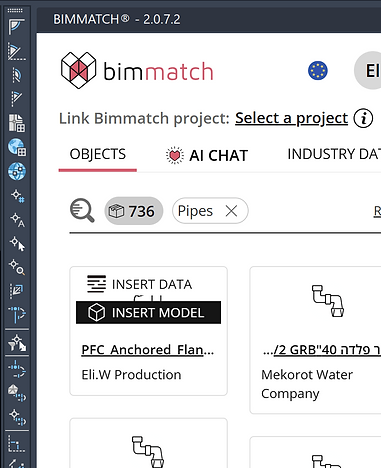
Bring in real geometry, not just parameters
Insert Model adds library products using Civil 3D's Network Catalog geometry, so parts land in your model exactly as your organization builds them. The catalog file saves locally for reuse across future projects, and your organization's data is applied to every object automatically.
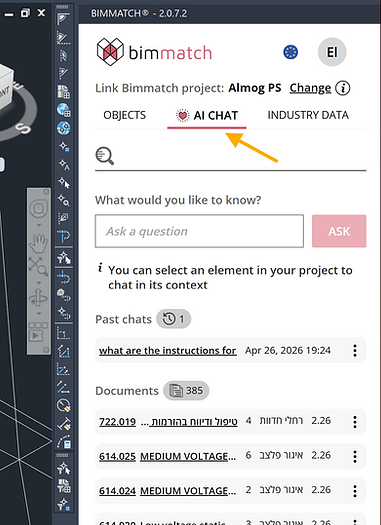
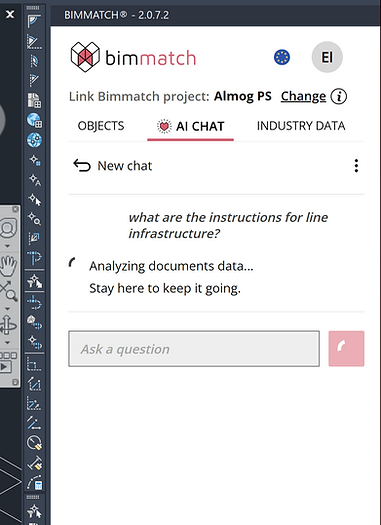
Ask your documents, not just search them
Bimmatch's AI reads your organization's document library and automatically matches the relevant information to the BIM elements you're working on — cutting down planning time and making compliance checks far easier.
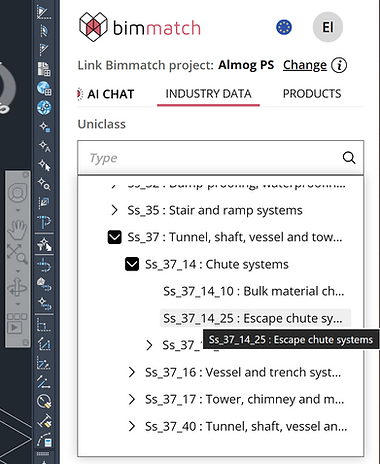
Classification and carbon, attached automatically
Attach Uniclass classification codes and embodied carbon values (A1–A3) directly to your elements — all saved straight into the element's dataset, ready for reporting.
We are here for you
Questions about the Civil 3D plug-in? Our team is happy to help.
[email protected]